· Pauline · How-to · 4 min read
A Little Nudge Needed? How to Send Proactive Messages by Your Agent
Learn how to let your agent take initiative by sending proactive messages in Microsoft Teams using a simple Power Automate flow.

Please be aware: The content is accurate at the time of creation. It may be that Microsoft has made changes in the meantime.
Imagine a virtual agent that doesn’t just sit quietly in Teams, waiting for you to ask questions. Instead, it takes the initiative. Your agents can send proactive messages, so there is no more waiting for users to reach out. You can now give them a friendly nudge whenever needed.
Take my “Little Transition Helper” agent, for example. It is up and running, and it sends reminders about how many days are left until outbound marketing retires.
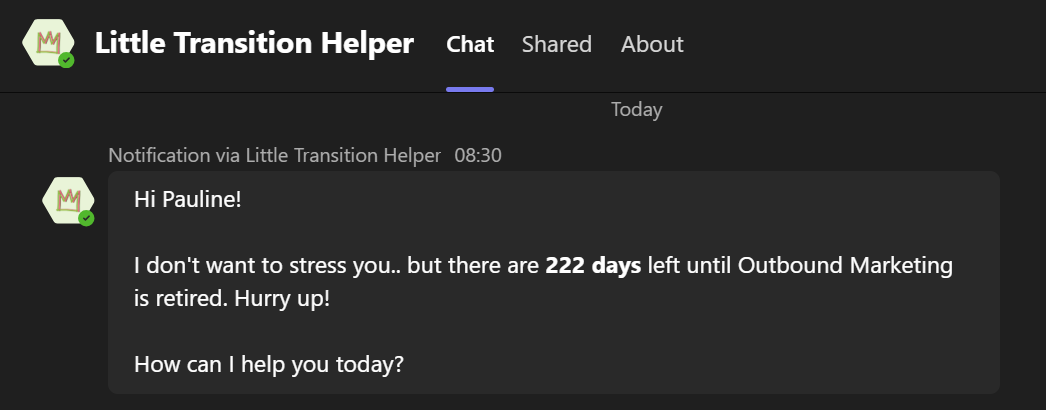
So let’s stress out outbound users a little bit 😉
Prepare the flow to send proactive messages
We start by setting up a scheduled flow that runs every day at 8:00 AM. Why 8 AM? Because there is no better way to kickstart your day than with a timely reminder from your proactive agent.
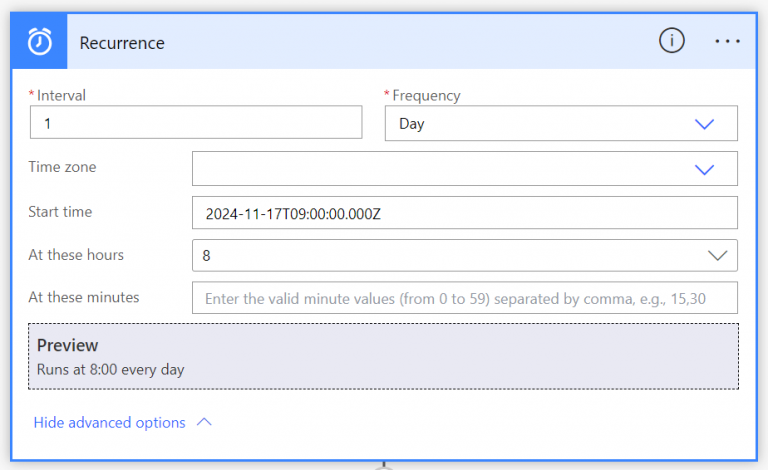
Next, we add a Compose action to calculate the remaining days until 30 June 2025 — the official end of outbound marketing. Use the expression below in the Compose step to get the countdown.
div(sub(ticks('2025-06-30T00:00:00Z'), ticks(utcNow())), 864000000000)In the next step, we identify all marketing users in your system. In my case, all marketing users are part of a “Marketing Team.” To retrieve these users, use the List rows step to fetch the members of the Marketing Team.
Your flow now looks like this.
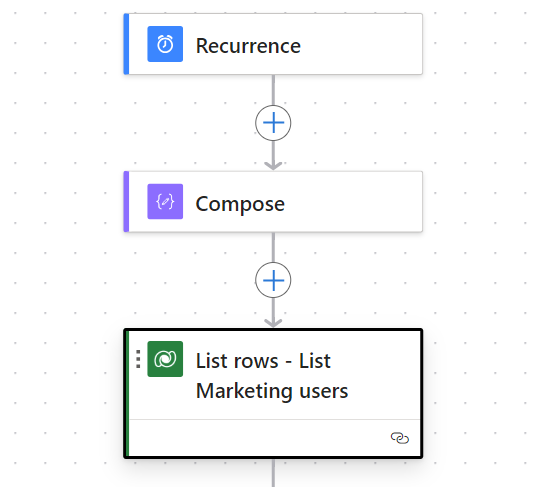
Here is an example of the FetchXML query you can use. Either exchange the GUID with yours or, even better, make the fetch more flexible than in this example or send it to a Teams team.
<fetch version="1.0" output-format="xml-platform" mapping="logical" distinct="true">
  <entity name="systemuser">
    <attribute name="firstname" />
    <attribute name="domainname" />
    <attribute name="systemuserid" />
    <order attribute="domainname" descending="false" />
    <link-entity name="teammembership" from="systemuserid" to="systemuserid" visible="false" intersect="true">
      <link-entity name="team" from="teamid" to="teamid" alias="ab">
        <filter type="and">
          <condition attribute="teamid" operator="eq" uiname="Marketing Team" uitype="team" value="{0AA13771-CDA4-EF11-8A69-7C1E5229E1B2}" />
        </filter>
      </link-entity>
    </link-entity>
  </entity>
</fetch>
Send proactive messages via agent
The last step of this flow finally sends the message. Choose the step Post message in a chat or channel with the following inputs:
- Post As: Power Virtual Agents
- Post In: Chat with bot
- Bot: Choose your agent
- Recipient: emailaddress or domainname from the fetched users
- Message: Be creative but polite ;)
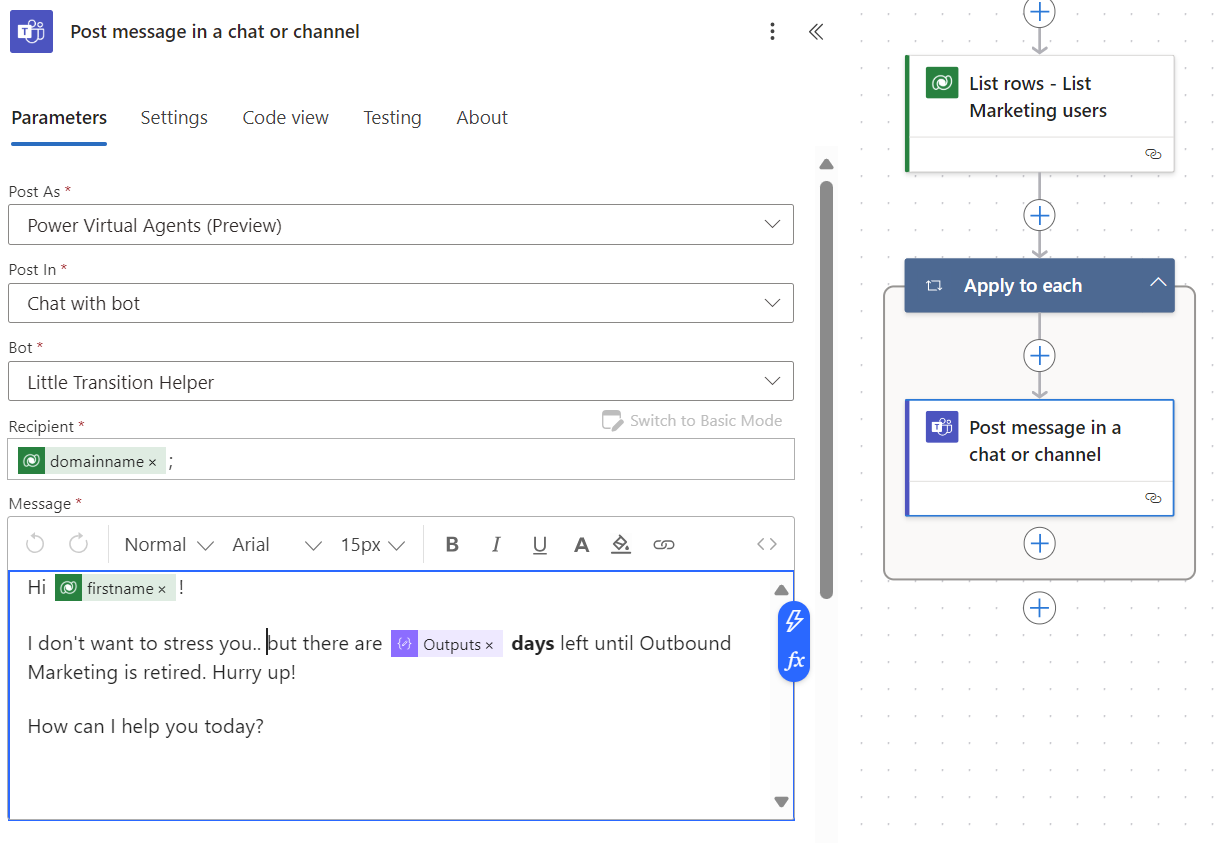
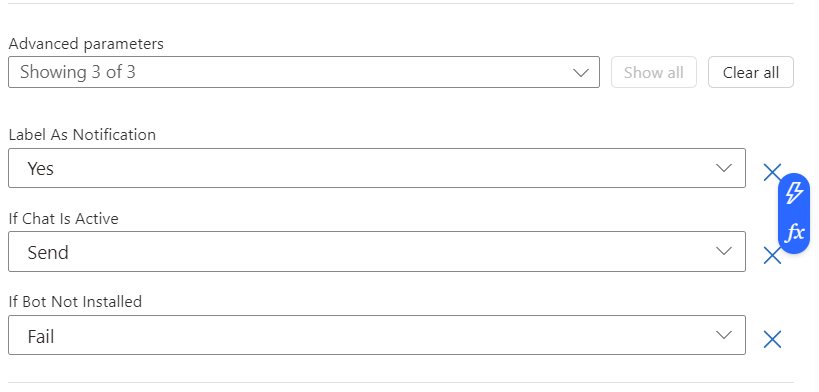
There are also a few advanced options that you can configure:
Label as notification: Determines whether the message displays “Notification via” before the copilot’s name.
If chat is active: Defines how the copilot behaves when the recipient is already engaged in a conversation.
- Send: The copilot sends the proactive message as usual.
- Don’t Send and Succeed: The copilot skips sending the message. The flow run succeeds with status code 300.
- Don’t Send and Fail: The copilot does not send the message, and the flow run fails.
If bot not installed: Handles cases where the recipient has not added the copilot to Microsoft Teams.
- Fail: The flow run fails.
- Succeed with Status Code: The flow run succeeds and returns status code 100, even though the message is not delivered.
Things to consider
When it comes to proactive messaging, Teams is just the beginning. One of my favorite features is sending adaptive cards. They allow you to share information and collect responses directly from users.
Before you dive in, keep these points in mind:
- Proactive messages are only sent to users who have the agent installed. If they uninstall or block the agent, the message does not go through.
- Proactive messages are not logged in conversation transcripts or Analytics sessions.
- If you send messages to multiple users, consider Power Automate limits. Reduce parallelism or split recipients into smaller groups to avoid throttling.
Summary
As you can tell, I have a bit of fun experimenting with agents and discovering useful tricks along the way to prepare for the future of Copilot Studio.
By setting up a simple Power Automate flow, you can nudge your team into action and keep them informed on time, every time. Keep your agent installed, respect Power Automate limits, and get creative with your proactive messages.
Have fun exploring, and happy agent building!
Do you have questions, ideas or remarks? Feel free to get in touch.


