· Pauline · How-to · 5 min read
Participation in Journeys for Contacts and Leads
Learn how to make journey participation visible for contacts and leads by using a custom table and Power Automate in Dynamics 365 Customer Insights – Journeys.

Please be aware: The content is accurate at the time of creation. It may be that Microsoft has made changes in the meantime.
Participation in Journeys for Contacts and Leads
One thing I’ve been missing in Outbound Marketing is the ability to see the participation in journeys from contacts or leads. I can, of course, find out which emails the contact received from a journey. But there is no good overview that shows me through which journeys the contact has passed or in which journeys he is currently still. I can imagine that it might be soon possible with MS Fabric. But until then I have found a small solution for this in Real-time Marketing. On the contact or lead form is then visible when they were part of which journey and why. Furthermore, this new table is also useful for filtering in segments. Because currently, it is not possible to search for participation in journeys in segments.
As a prerequisite, it is important to know that Dynamics 365 Customer Insights - Journey, aka Dynamics 365 Marketing, writes a record in the Journey Instance table (technical name: msdynmkt_journeyinstance) for each inflow in a journey. Unfortunately, these GUIDs are not resolved into lookups, but simply given to us as text, but we can easily use that in PowerAutomate. I want to make clear that you should make sure if this solution makes sense for your organisation and hopefully Microsoft will add this functionality soon out of the box.
Short note: By the way, the Journey Instance table is of the “Elastic” type, which means that it is managed by Microsoft Dataverse. Elastic tables have the same familiar user experience and API as standard tables. They share many aspects and options with standard tables, but have their own unique functionalities and functionalities supported by Azure Cosmos DB.[1]
Create a new table
First, I create my own table where I store the information and then display it on the contact or lead. I call it Journey Participations because I think that’s appropriate, but of course that’s up to you. For this I create a few fields:
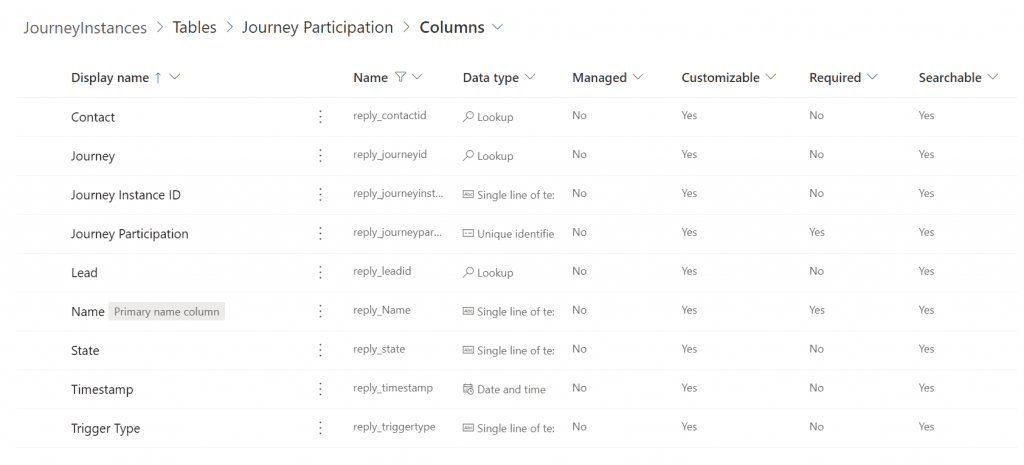
Details to the fields created
- Contact: Lookup to the contact
- Journey: Lookup to the journey (msdynmkt_journey)
- Journey Instance ID: A text field where I store the ID of the Journey Instance record and later needed for updates
- Lead: Lookup to the lead
- State: State of the Journey Instance, which can also update. The values are Inprogress, Completed, cancelledbyExitEvent, cancelledbySupressionSegment, cancelledbyJourneyStopped, cancelledbyActionFailure. In the Journey Instance table, this is a local option set but I store it in a simple text field, a bit for convenience.
- Timestamp: Timestamp for created on or modified on date of the journey instance
- Trigger Type: I populate this field later in the PowerAutomate with a value from the journey itself. There are following options:
- ongoing (A one-time journey where new audience members can start at any time)
- recurring (A recurring journey, where all members of the target group repeat the contact history)
- onetime (A one-time journey with a static audience)
- event (trigger-based)
Create a new Cloudflow for participation in journeys
The flow should create or update a record in our new table every time the system creates a journey instance. In the first part of the flow, we start with the trigger that fires based on this journey instance. After that I get the information from the table again, this makes it easier for me later in the flow. I do the same for the journey itself, so that I can get the information for the trigger type. For this, I use the dynamic value Journey Definition, because it contains the Journey GUID.
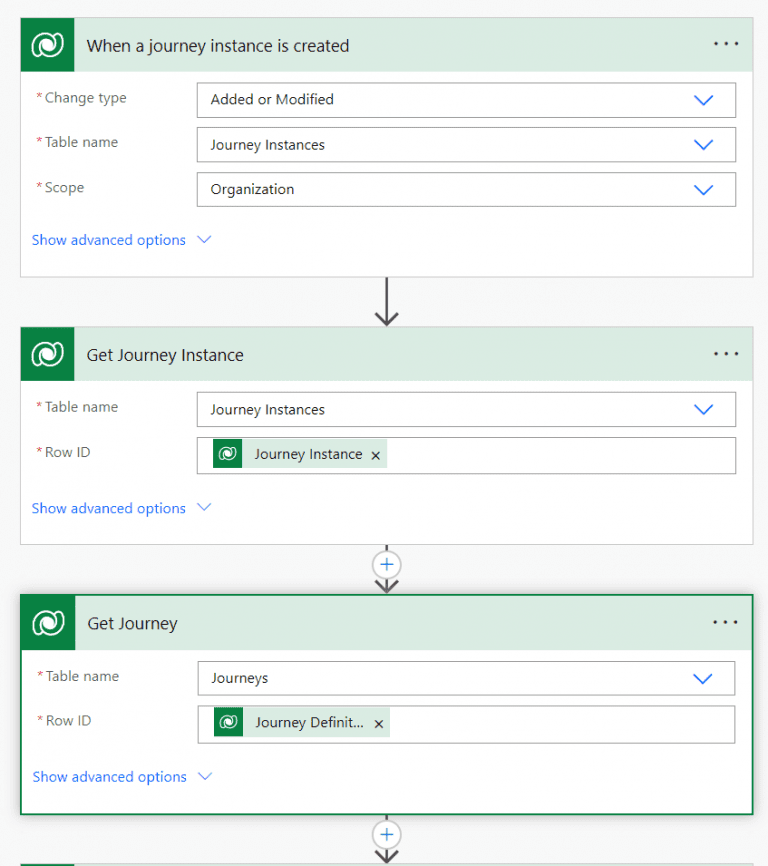
In the next part of the flow, I check if there is already a record in the Journey Participation table. Because if not, the flow has to create a new one. And if there is already one, the flow will update it with the timestamp and status. In the action “List rows” I filter for Journey Participations with the same Journey Instance GUID. For that, use the oData filter like reply_journeyinstanceid eq ’@{triggerOutputs()?[‘body/msdynmkt_journeyinstanceid’]}’. In the following condition, I use the expression length(outputs(‘Get_existing_journey_participations_’)?[‘body/value’]).
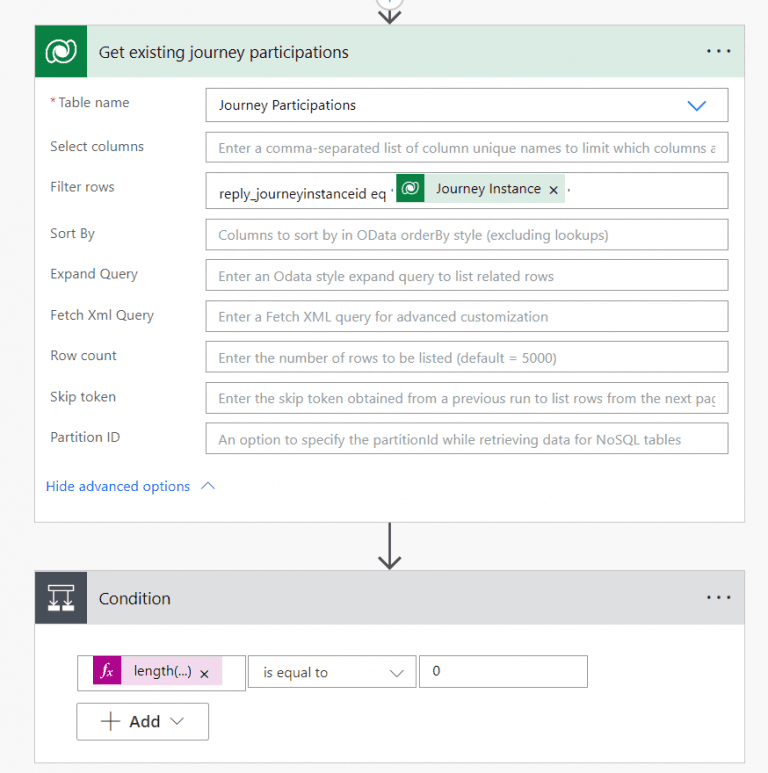
Flow: New record or update record
outputs('Get_Journey_Instance')?['body/msdynmkt_journeyinstancestate@OData.Community.Display.V1.FormattedValue']

outputs('Get_Journey')?['body/msdynmkt_triggertype@OData.Community.Display.V1.FormattedValue']
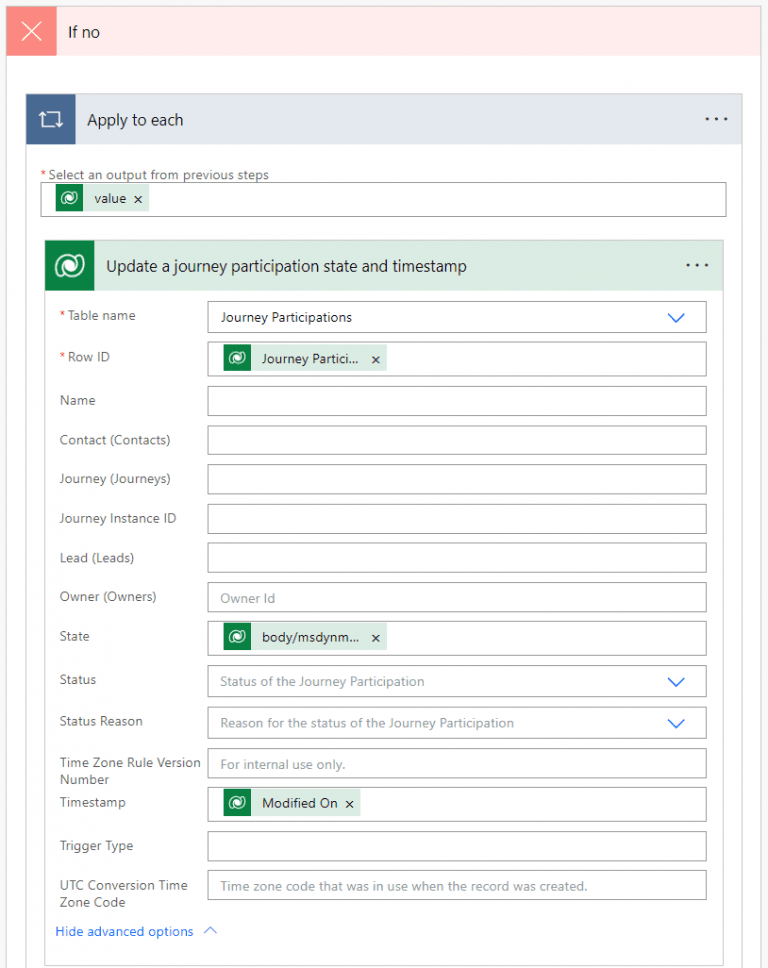
If there is already a Journey Participation record, we go to the No path in the first condition. There we update the existing record for the state and timestamp fields.
Show participation in journeys on the contact or lead
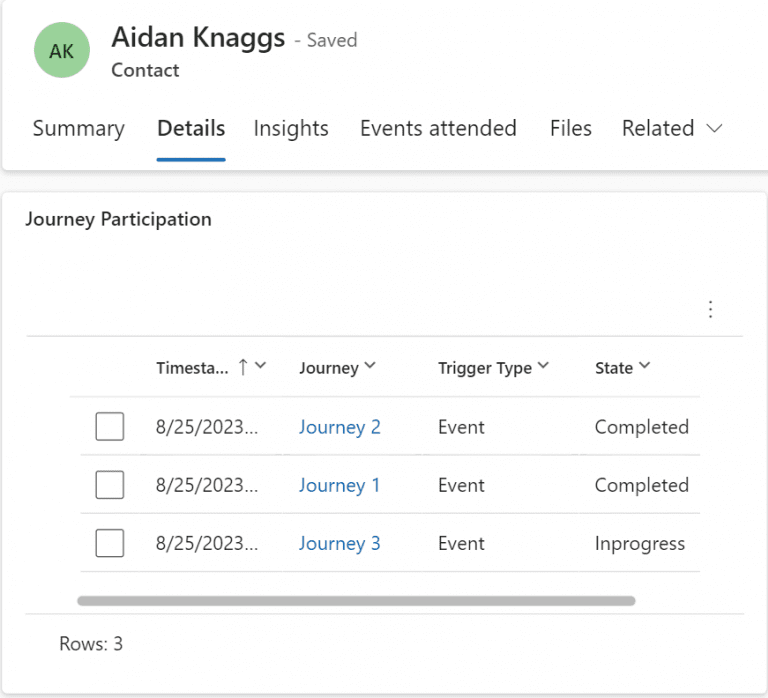
As a final step, I add a grid on the lead and contact that displays the records on the form. I create the view with the columns Timestamp, Journey, Trigger Type and State.
Hints
If your organization has a lot of journeys with a lot of inflows, you should pay attention to the API limit in PowerAutomate.
To use the new table in segments, remember to check the Track Changes checkbox in the table settings when creating the table.
Do you have questions, ideas or remarks? Feel free to get in touch.


